
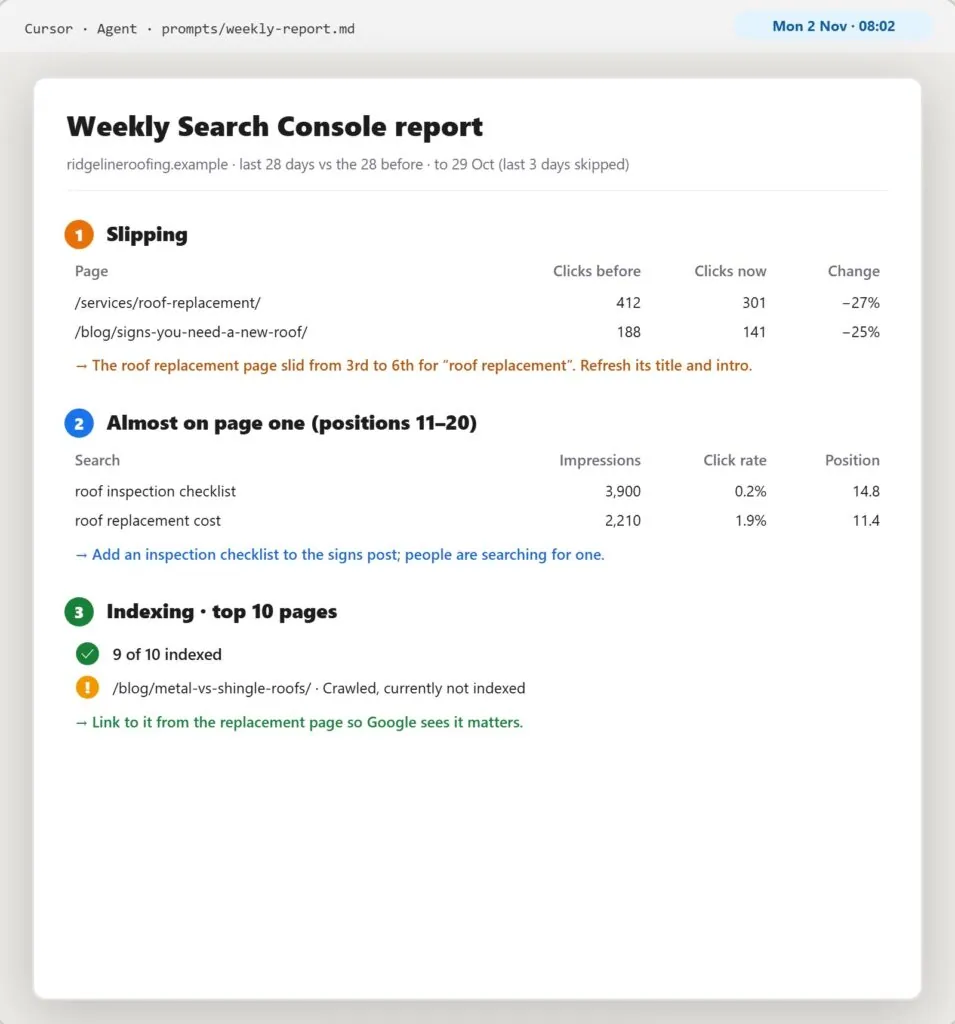

Overview: Connect Google Search Console to Cursor or Claude Desktop, paste one saved prompt each Monday, and get one page in plain English: what slipped, what’s almost on page one, and what Google hasn’t indexed. It costs $8 a month on Cursor Plus, and the steps below take you through it from an empty Google Cloud account.
What if you’ve been paying for the wrong part of SEO reporting?
I researched and tested 10-12 ways of getting this done before arriving at the one that works best and most seamlessly.
The connection isn’t the useful bit.
The useful bit is one page on a Monday morning that tells you what changed and which fix to make first.
And here’s where it gets interesting: you may not need a reporting subscription to get that page.
Semrush’s SEO plan is about $117 a month billed yearly.
Ahrefs’ cheapest plan with scheduled reports is about $208.
Then there’s the free answer everyone reaches for: Google’s own Data Studio, which will email you charts every week.
That works.
It just doesn’t tell you what the charts mean.
This setup costs $8 a month, and that’s the AI, because Google’s side and the connector are both free.
Which leaves roughly $109 a month against the cheaper of those two, if a weekly report is the only thing you use it for.
That matters if the report is the reason you’re paying for one of those tools.
So is this a replacement for Semrush or Ahrefs?
No.
It only replaces the weekly report, because those suites also do rank tracking, backlinks and competitor research, and this doesn’t.
Here’s every step, including the one click that quietly breaks this setup a week later if you miss it.
What you need
- A Google account that can already see your site in Search Console.
- A Windows 10 or 11 computer, because the commands and paths below are written for Windows.
- Cursor Plus at $8 a month, or Claude Desktop.
A word on the free plans, because I’d rather you heard this before you started than an hour in. Cursor’s Free plan is too limited for this: in my test it stopped after one real question, and its model choice was locked. Claude’s Free plan does include the desktop app and connectors, but with limited usage, and Anthropic notes that connectors are token-intensive, so expect to run out quickly. Claude Pro is $17 a month billed yearly or $20 monthly. These prices were checked on each vendor’s own page between 30 October and 4 November 2026, so check them again before you sign up.
Step 1: A Google Cloud project
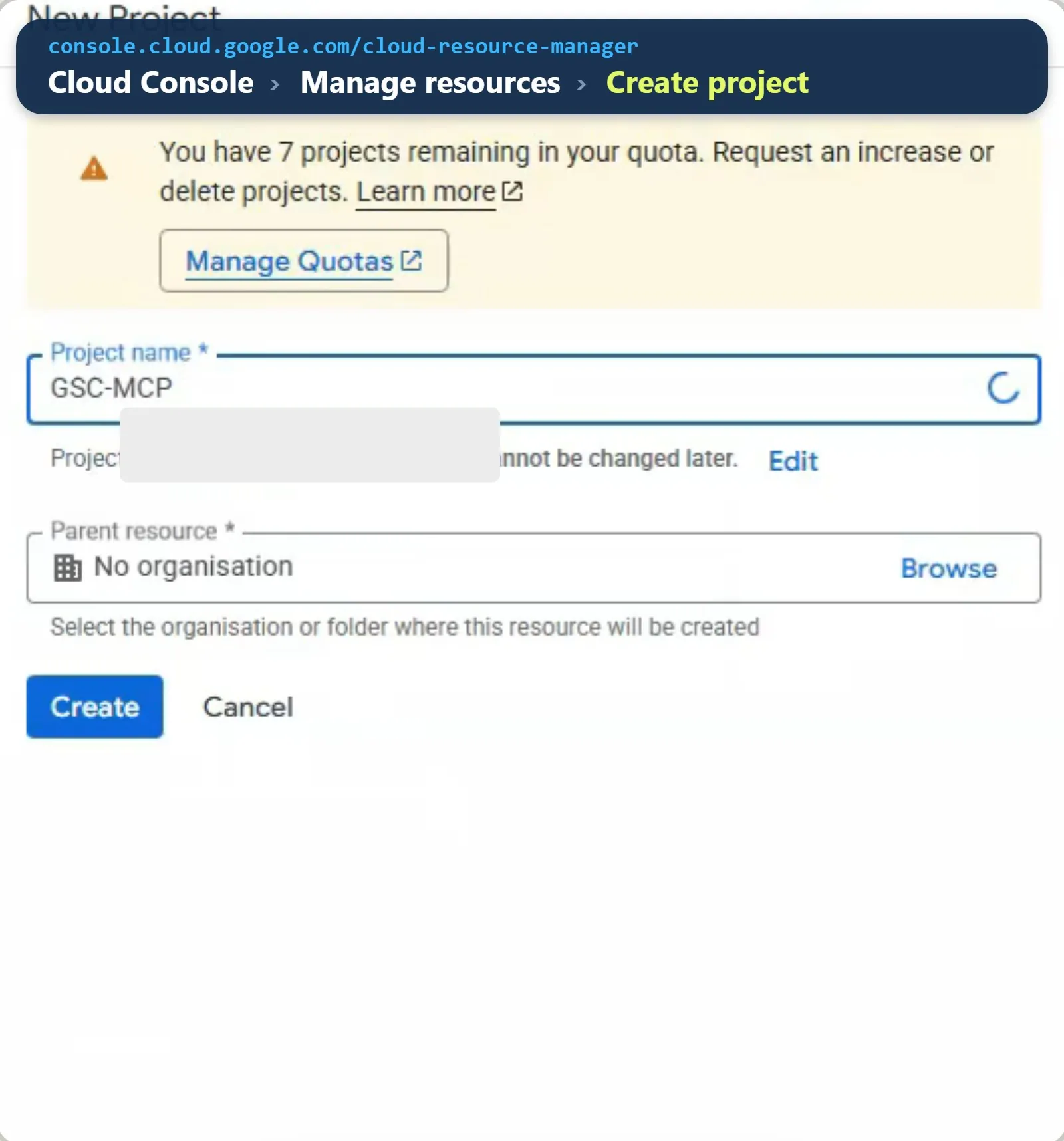
- Go to console.cloud.google.com/cloud-resource-manager and sign in with the account that owns your Search Console property.
- Click Create project, name it
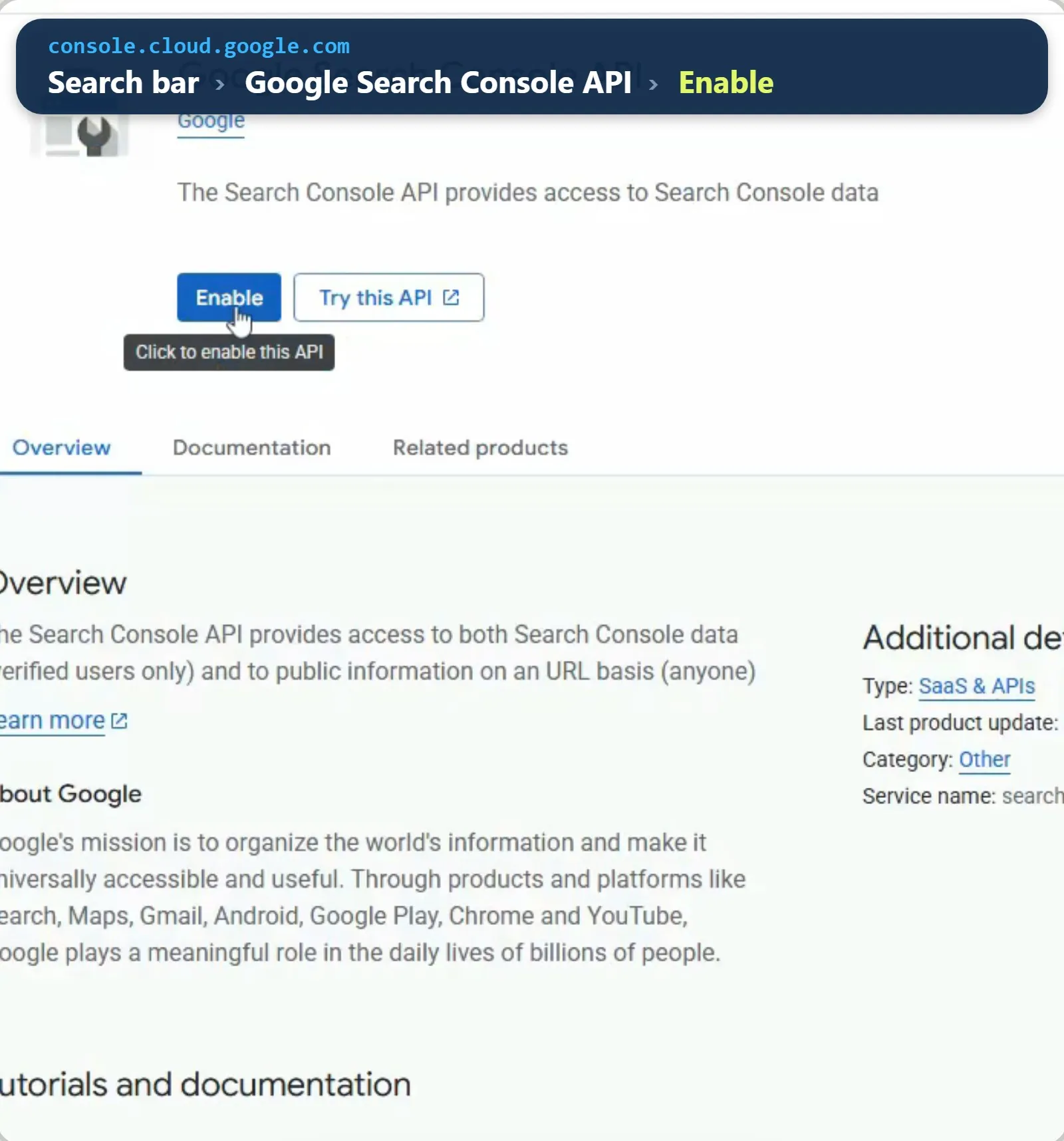
GSC-MCPand click Create. Then chooseGSC-MCPin the project picker in the top bar, because every later step happens in this project. - Search the top bar for Google Search Console API, open it and click Enable. If the button spins and comes back, refresh: the status should read Enabled.
Step 2: The sign-in screen, and the 7-day trap
- Open the menu, then APIs & Services, then OAuth consent screen. This opens Google Auth Platform. Click Get started.
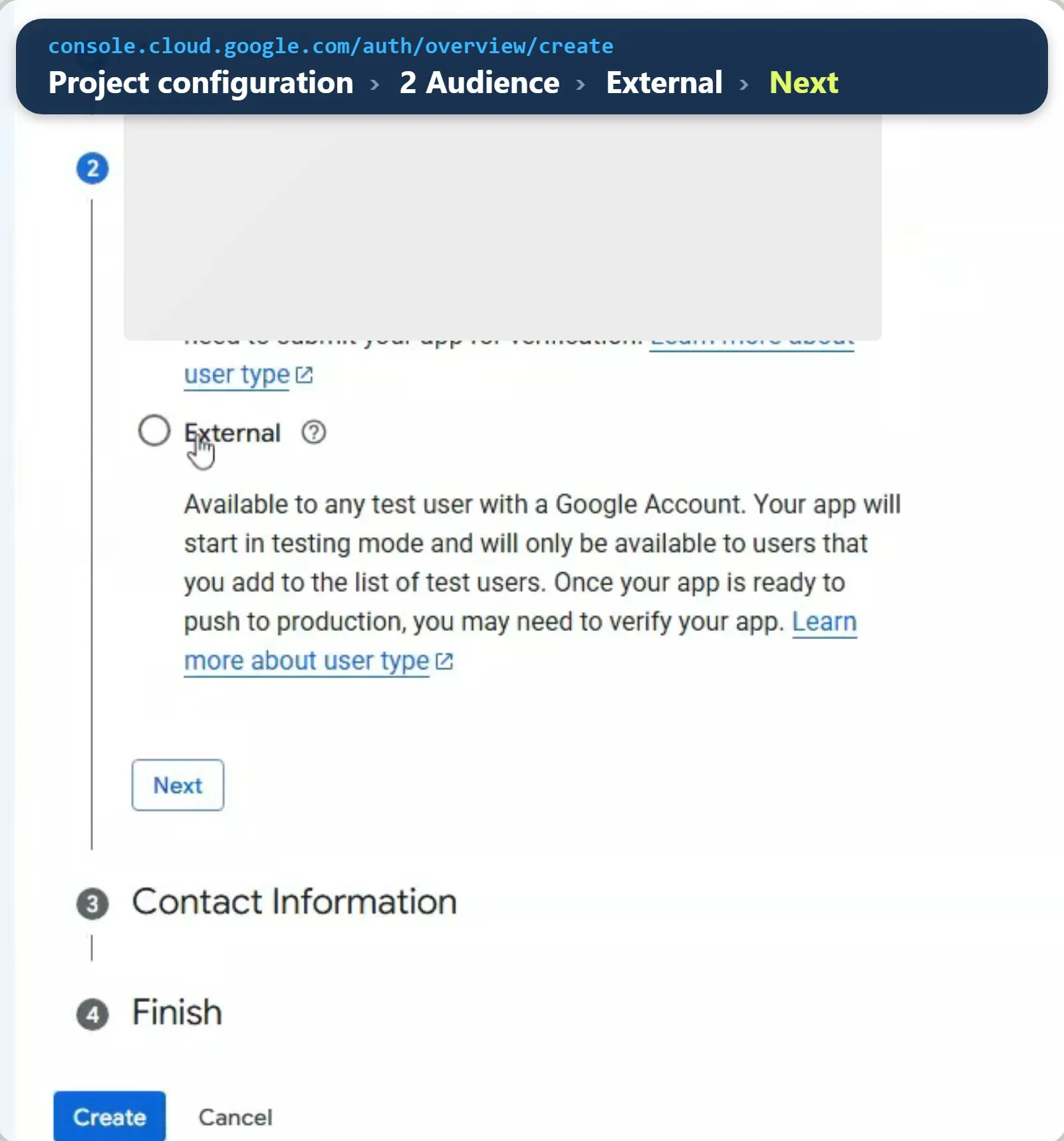
- Under App Information, add an app name and your support email, then Next. Under Audience, choose External, then Next. Under Contact Information, add your email, then Next. Under Finish, tick the policy box, then Continue and Create.
- Go to Audience, click Publish app and Confirm. The status should read In production.
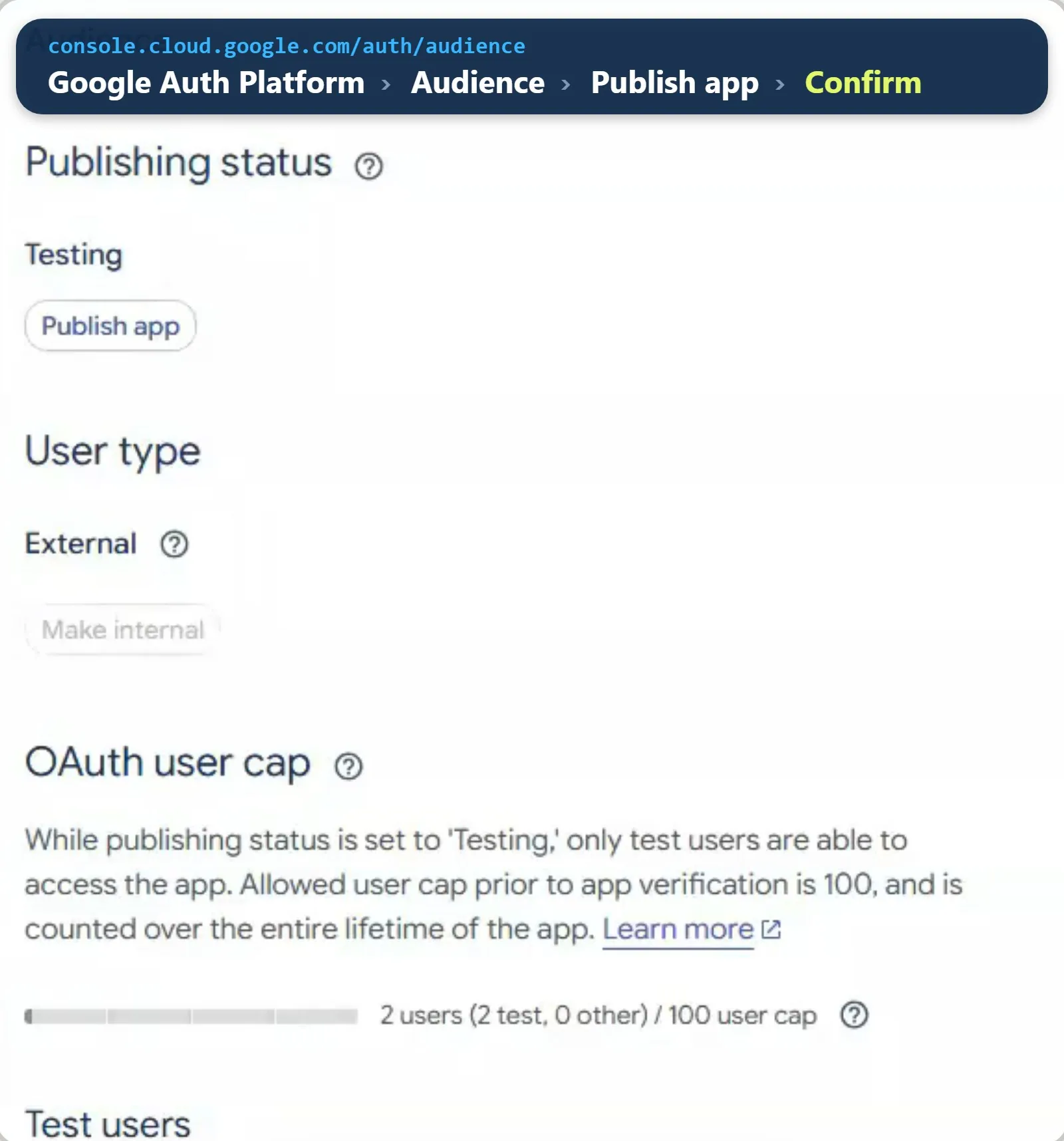
Do that third one before you ever sign in. In Testing mode, Google issues refresh tokens that expire seven days after consent, so the connector works beautifully for a week and then stops, usually on the Monday you wanted it. If Publish app is greyed out, complete the Branding page first. You don’t need Google’s verification either, because personal-use apps with fewer than 100 users can click through the “unverified app” warning.
Step 3: The key
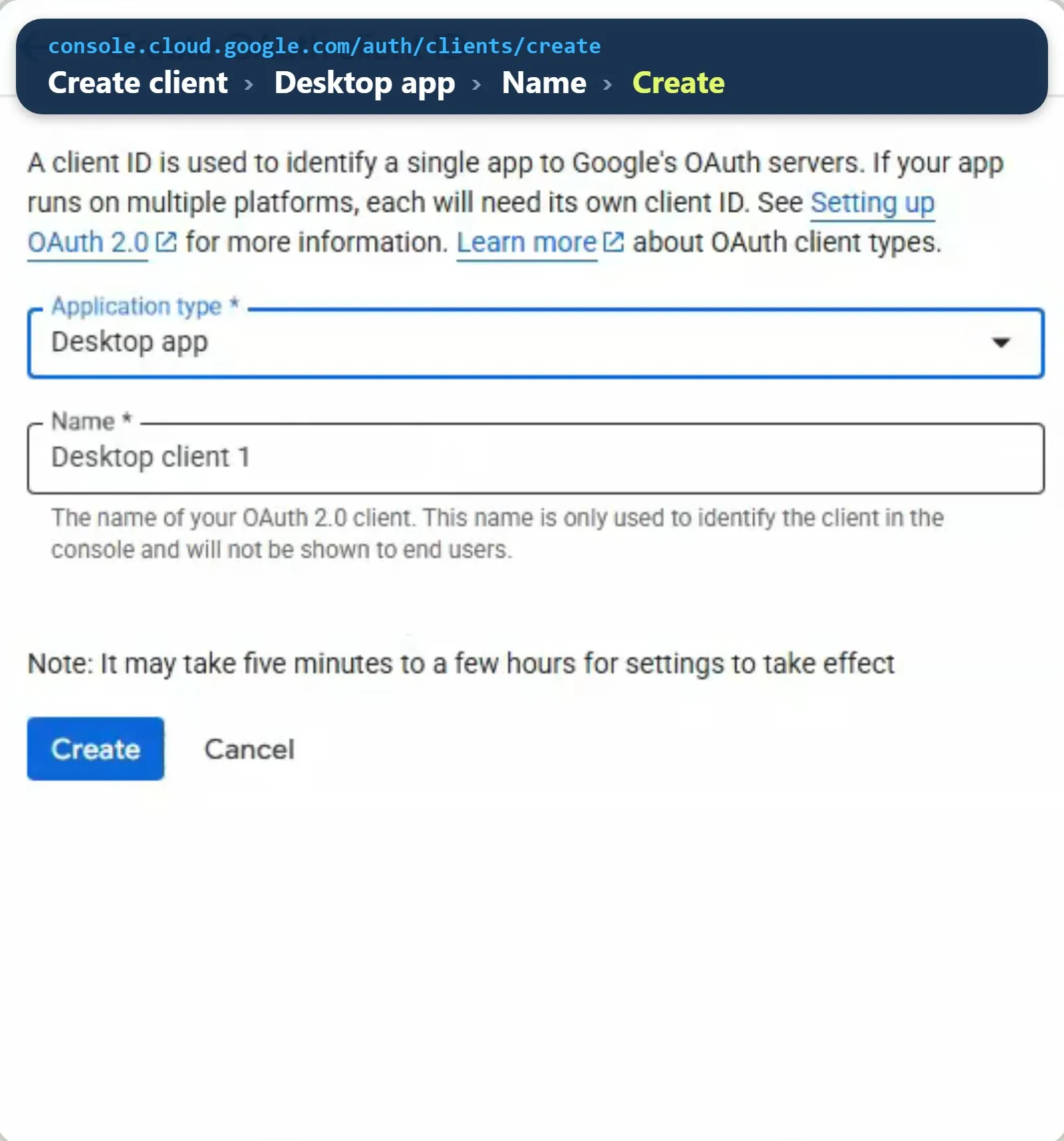
- Go to APIs & Services, Credentials, Create credentials, OAuth client ID. Choose Desktop app, name it
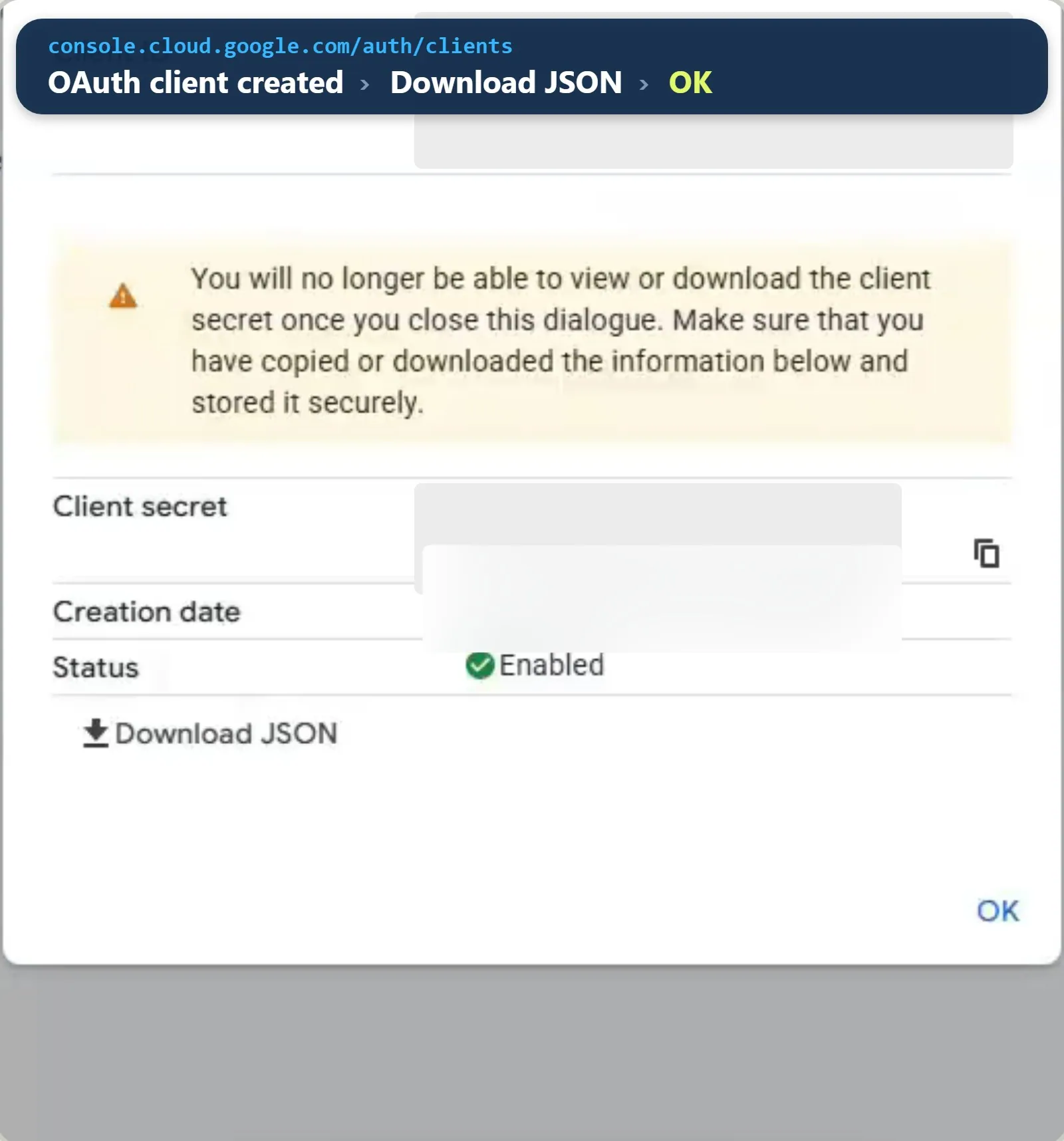
GSC-MCPand click Create. Leave “Use this client for an AI-powered agent” unticked. - On the dialog, click Download JSON before you click OK, because Google won’t show the secret again.
- Rename the file
client_secrets.jsonand move it toC:\GSC-MCP\client_secrets.json. Treat it like a password, and never share it.
Step 4: Install uv
uv downloads and runs the connector. Open PowerShell (normal, not admin) and run:
powershell -ExecutionPolicy ByPass -c "irm https://astral.sh/uv/install.ps1 | iex"
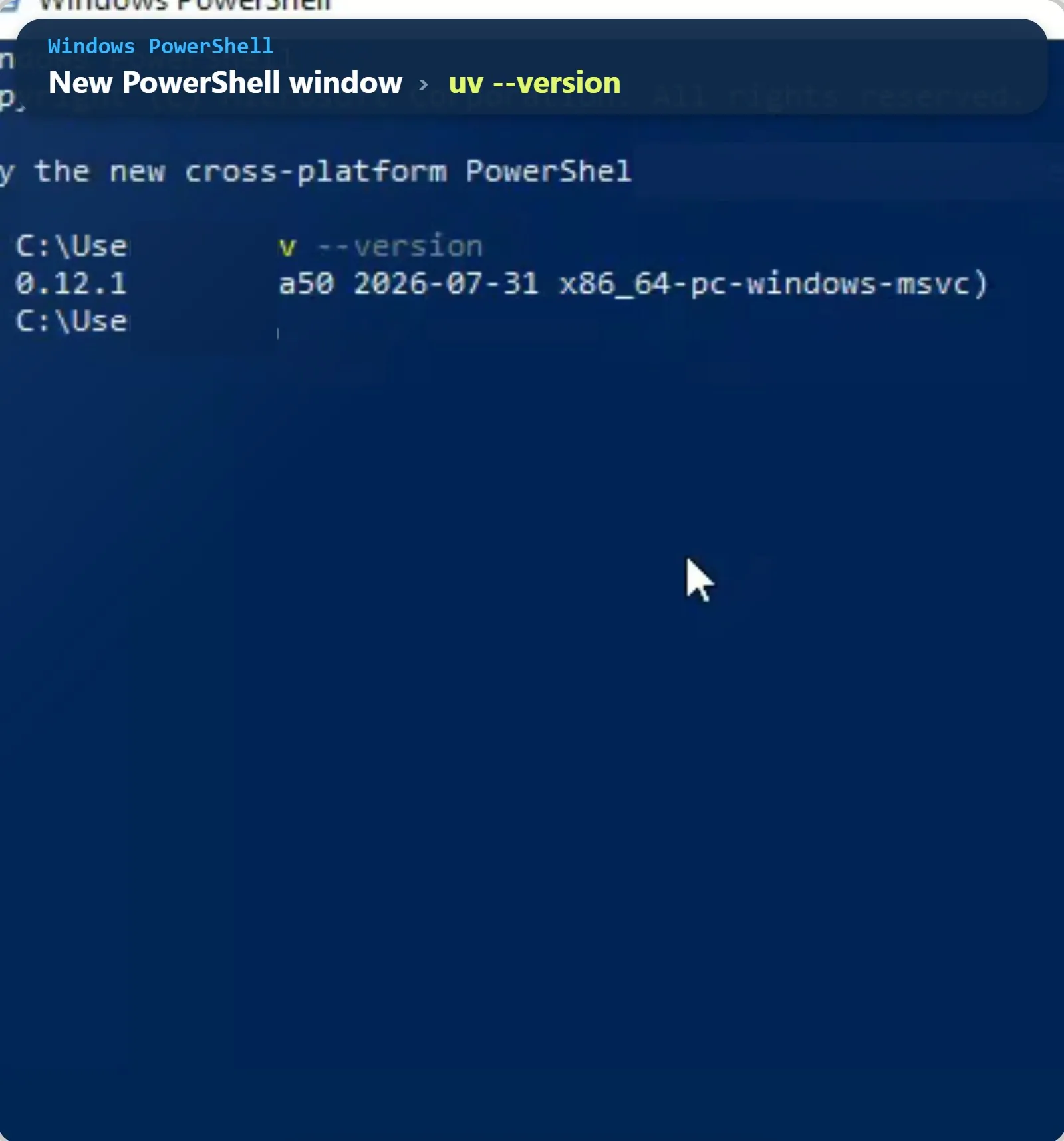
When it finishes, open a new PowerShell window and run these two, then copy the path the second one prints:
uv --version
where.exe uvx
Step 5: Connect Cursor
In Cursor, go to View, Settings, Tools & MCPs, Add Custom MCP. That opens mcp.json. Paste this, with your own uvx path and secrets path:
{
  "mcpServers": {
    "gscServer": {
      "command": "C:\\Users\\YOUR_NAME\\.local\\bin\\uvx.exe",
      "args": ["mcp-search-console"],
      "env": {
        "GSC_OAUTH_CLIENT_SECRETS_FILE": "C:\\GSC-MCP\\client_secrets.json"
      }
    }
  }
}
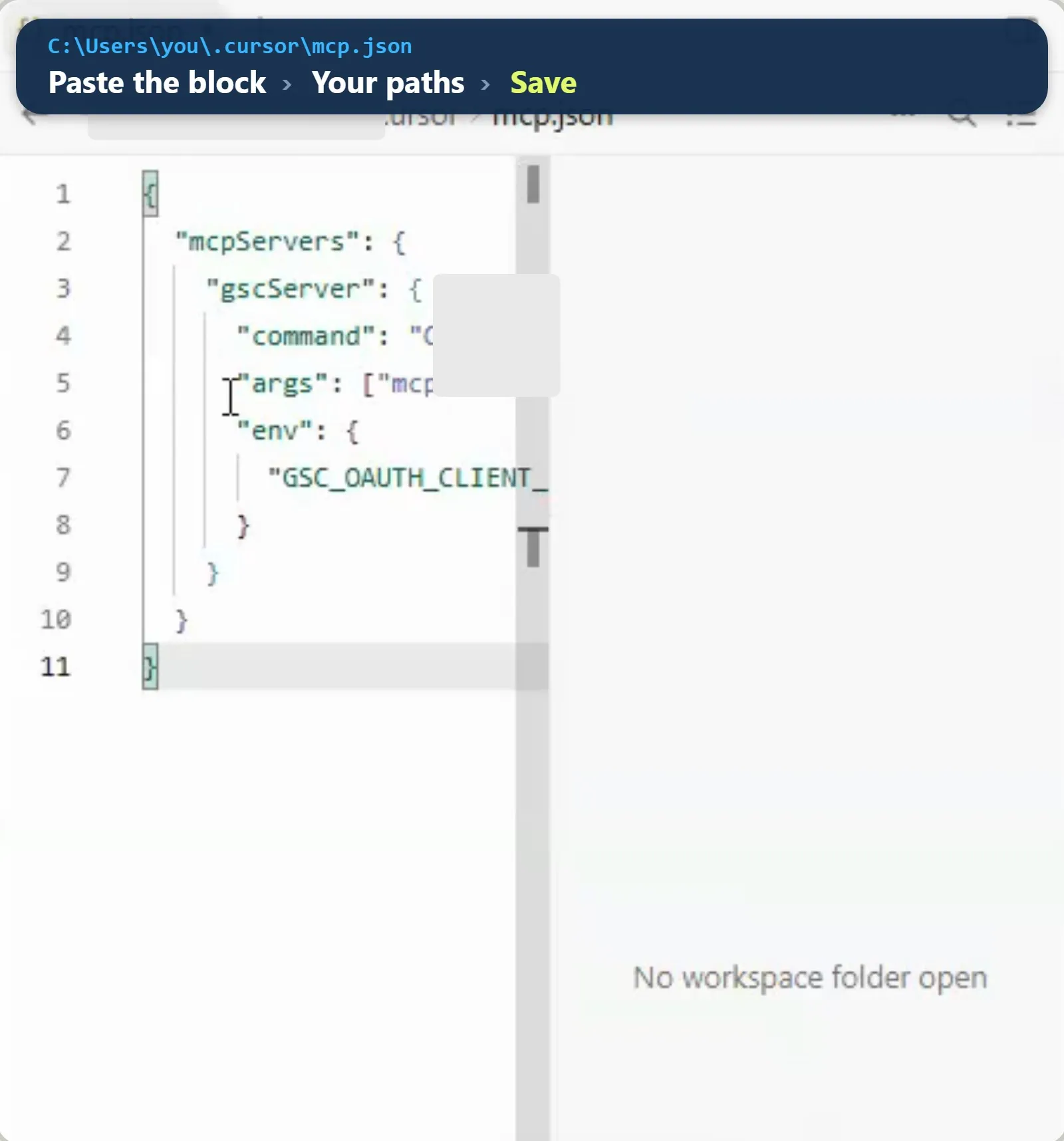
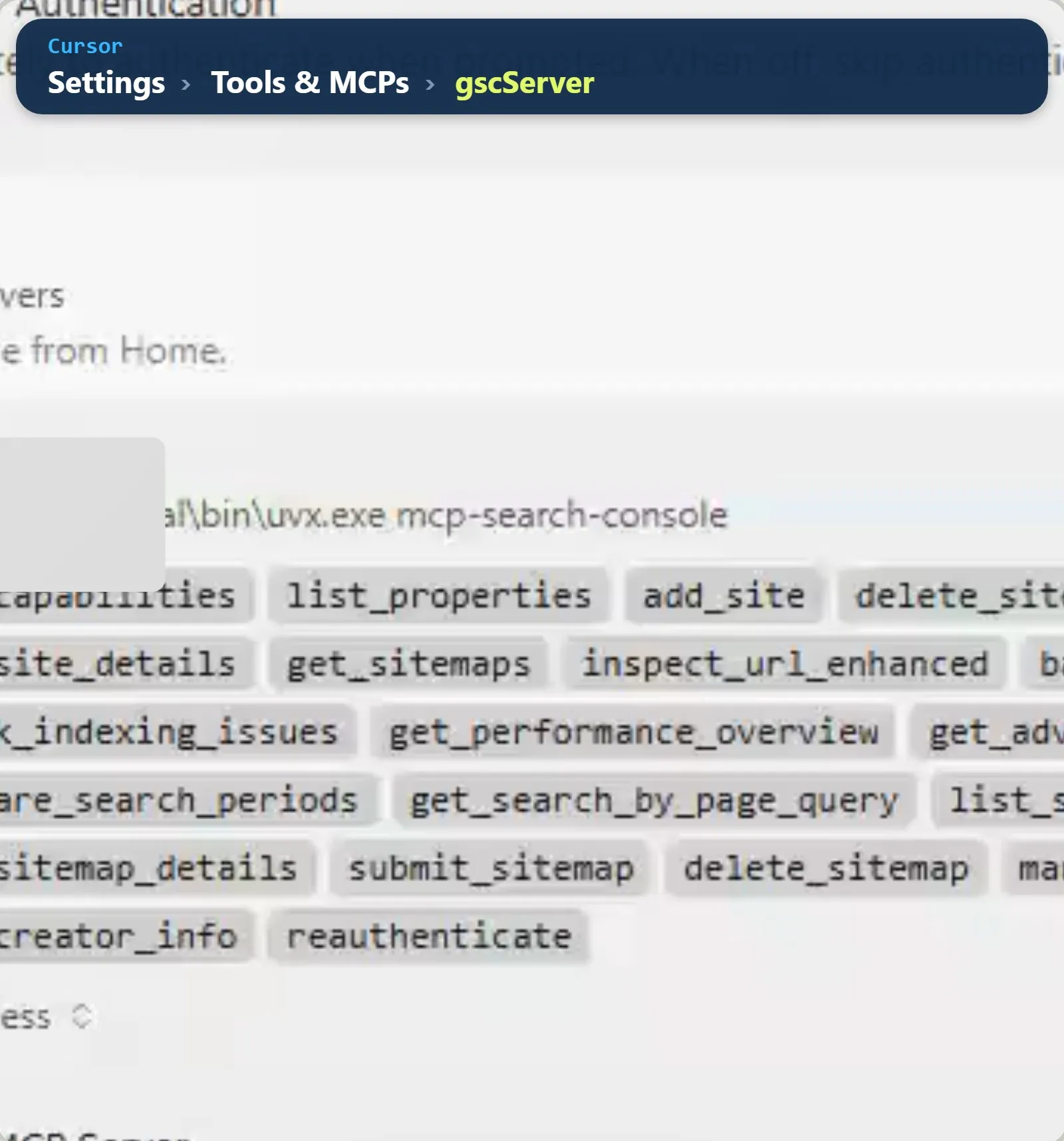
Every backslash is doubled in this file, and a single one is enough to stop it loading. Save it. Back in Tools & MCPs, gscServer should show a green dot and its tools. If it doesn’t appear, fully quit Cursor, including the icon by the clock, and open it again.
Using Claude instead of Cursor?
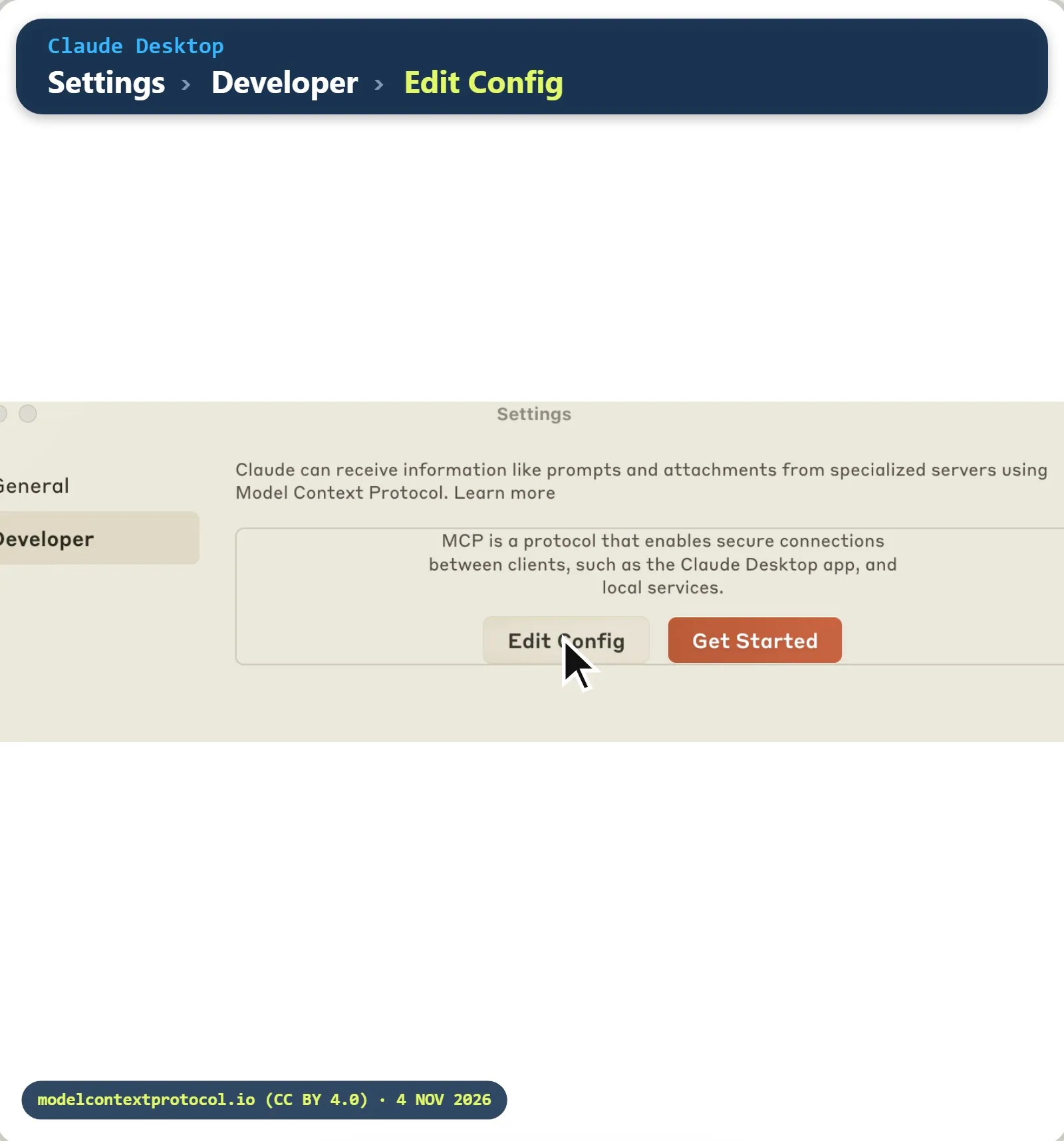
Only this one step is different, and everything else is the same. The connector runs on your PC, so it has to be the Claude Desktop app, not claude.ai in the browser. Open the menu, then File, Settings, Developer, Edit Config. Paste the same block into claude_desktop_config.json, or merge the gscServer entry if the file already has content, then save and fully quit Claude before opening it again. Click the plus in the message box, then Connectors, Manage connectors, and gscServer should be there with its tools.
Step 6: Sign in once and ask real questions
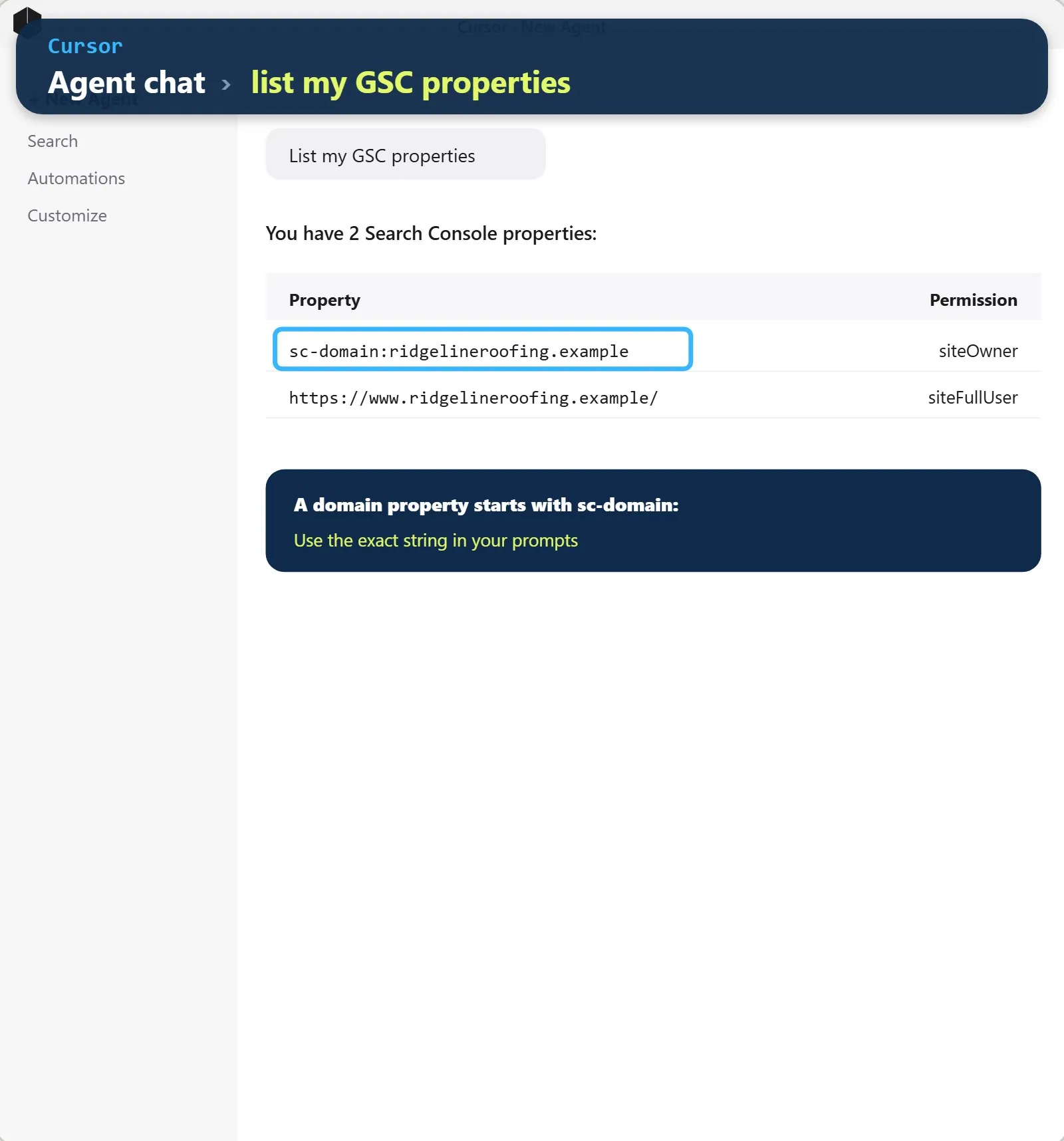
Start a new agent chat and type List my GSC properties. If it asks to run the tool, allow it. Your browser opens the first time, so choose the Google account that owns your site. Google warns that it hasn’t verified this app, and since it’s your own app you can continue, either straight through or via Advanced and Go to GSC-MCP.
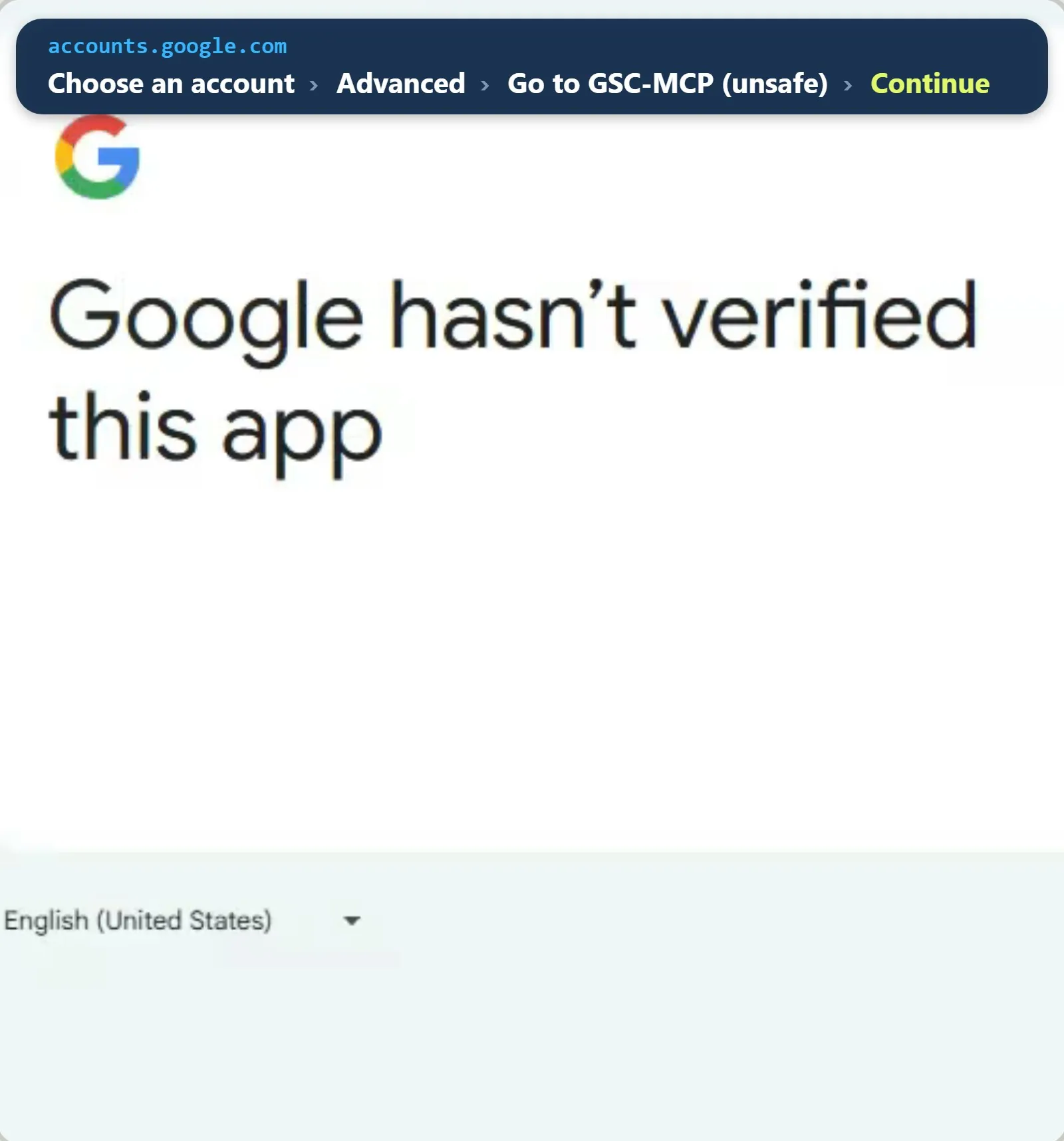
The next screen deserves a proper look, because it asks to view and manage your Search Console data, which is broader than read-only. The connector requests write access too. Its add-site, delete-site and delete-sitemap tools stay off unless you set GSC_ALLOW_DESTRUCTIVE to true, but submitting a sitemap isn’t gated, so that part rests on the prompt telling it not to. I’d rather tell you that than call it read-only and hope nobody checks.
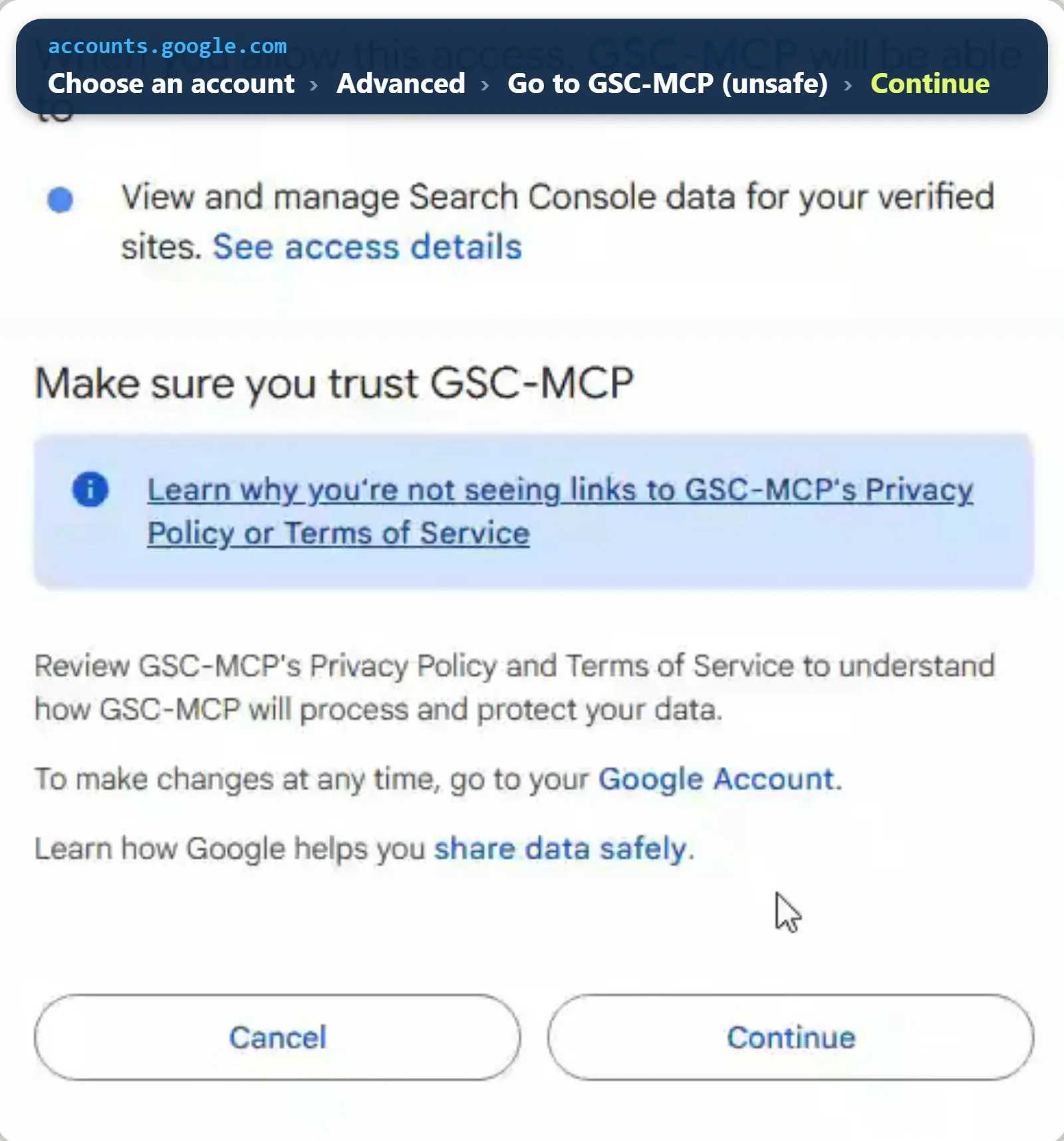
When the page says the flow has completed, close the tab and ask again. Note the exact name of your property, because a domain property starts with sc-domain: and the prompts need it spelled exactly.
Step 7: Your Monday email, then your Monday page
The email runs by itself in Google’s cloud. Open the Data Studio template, make a copy with your property as the data source, then go to Share, Schedule delivery, set the start date to a Monday, Repeat to Weekly on Monday, and click Save. It arrives whether your computer is on or not.
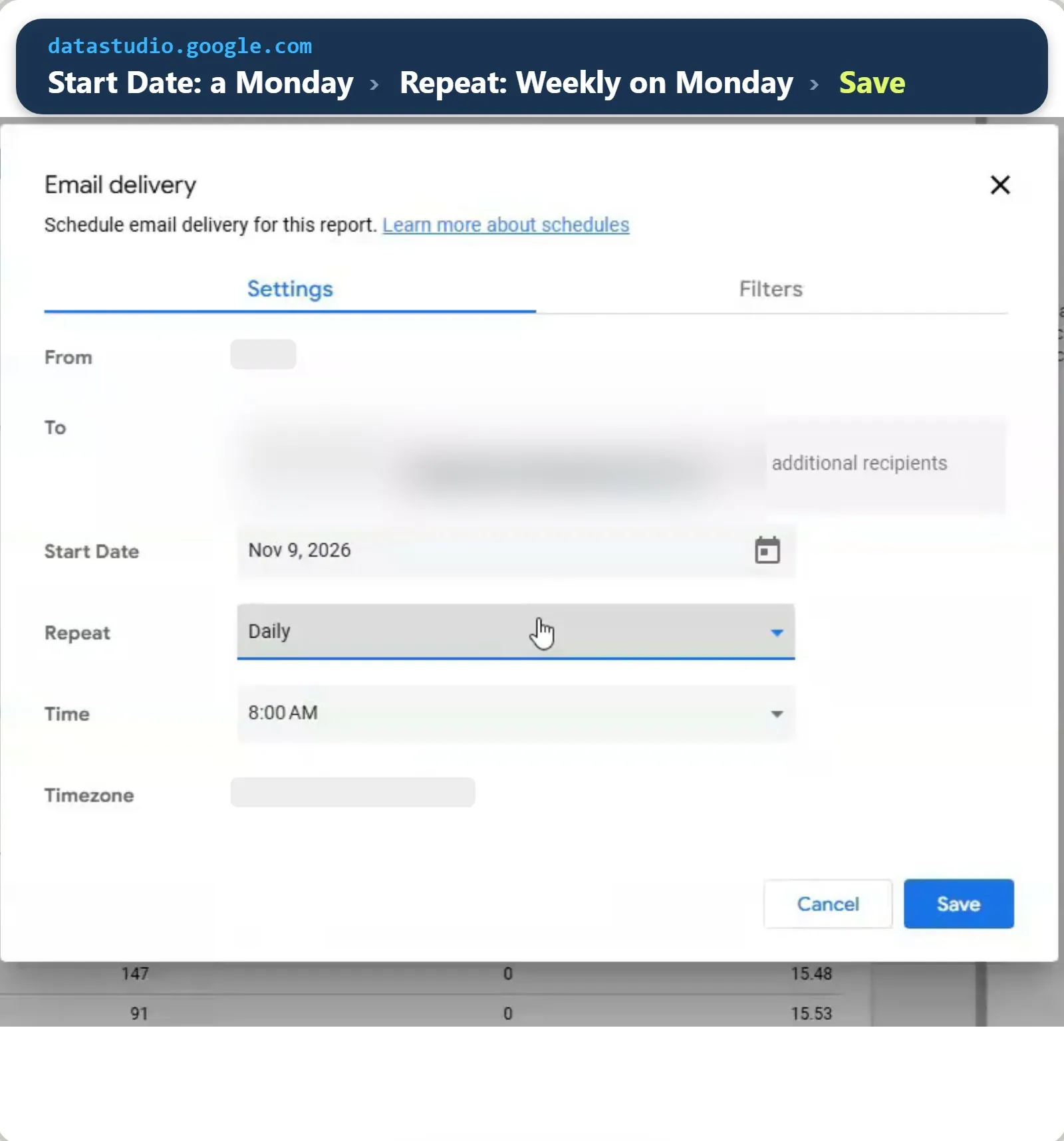
When it lands, open a new chat and paste this, with your own property in the first line:
Use gscServer for sc-domain:example.com. Read only: never submit, add or delete sitemaps or sites.
Compare the last 28 days with the previous 28 days, excluding the most recent 3 days (Google's data usually takes 2-3 days to arrive).
Write one page, in plain English, with one suggested action per finding:
1. Slipping: the pages that lost the most clicks, and the queries behind the drop.
2. Almost on page one: queries in positions 11-20 with high impressions and a low click rate.
3. Indexing: inspect the index status of my top 10 pages by clicks, and flag any that aren't indexed.
End with the one fix you'd do first this week.
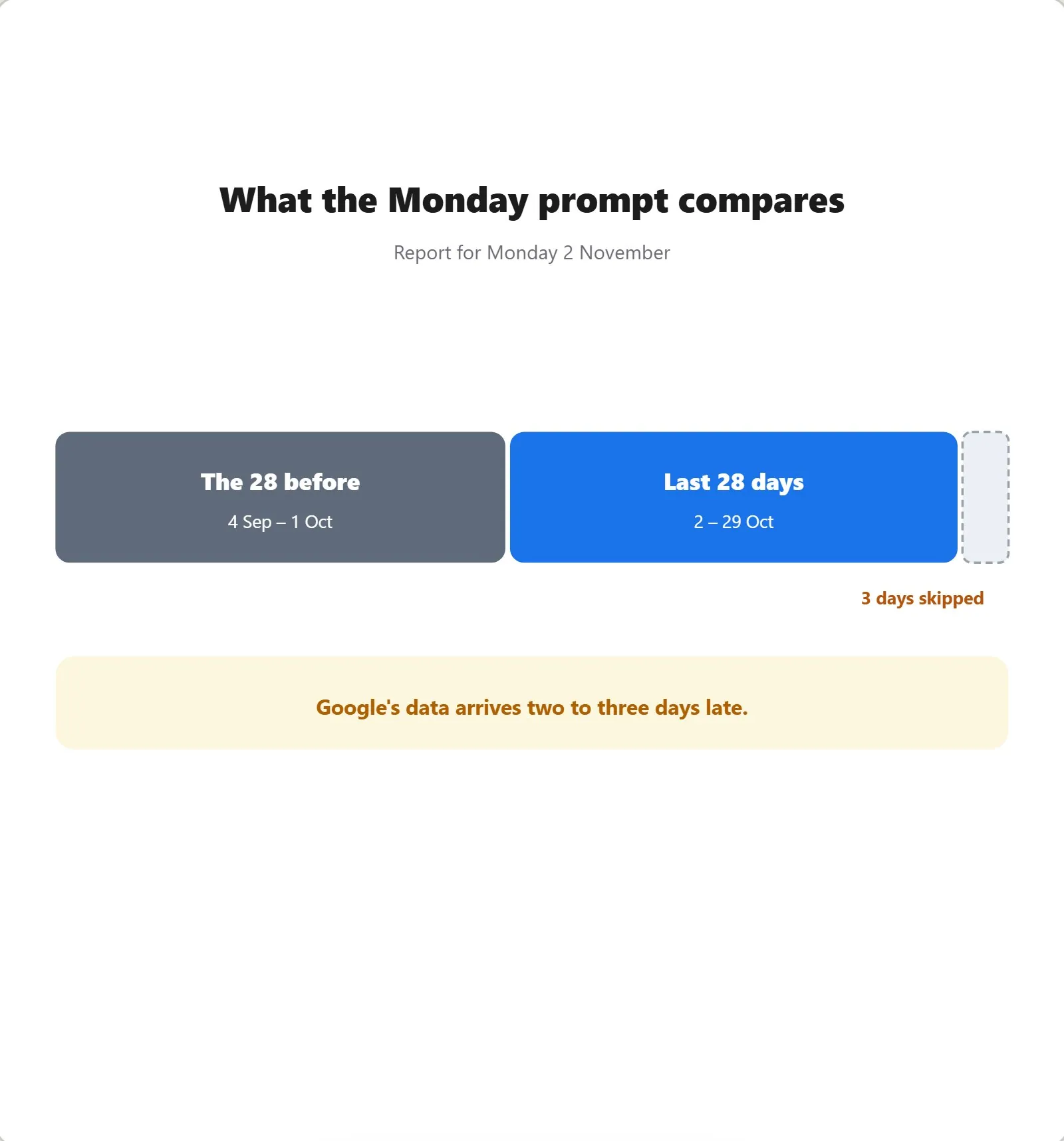
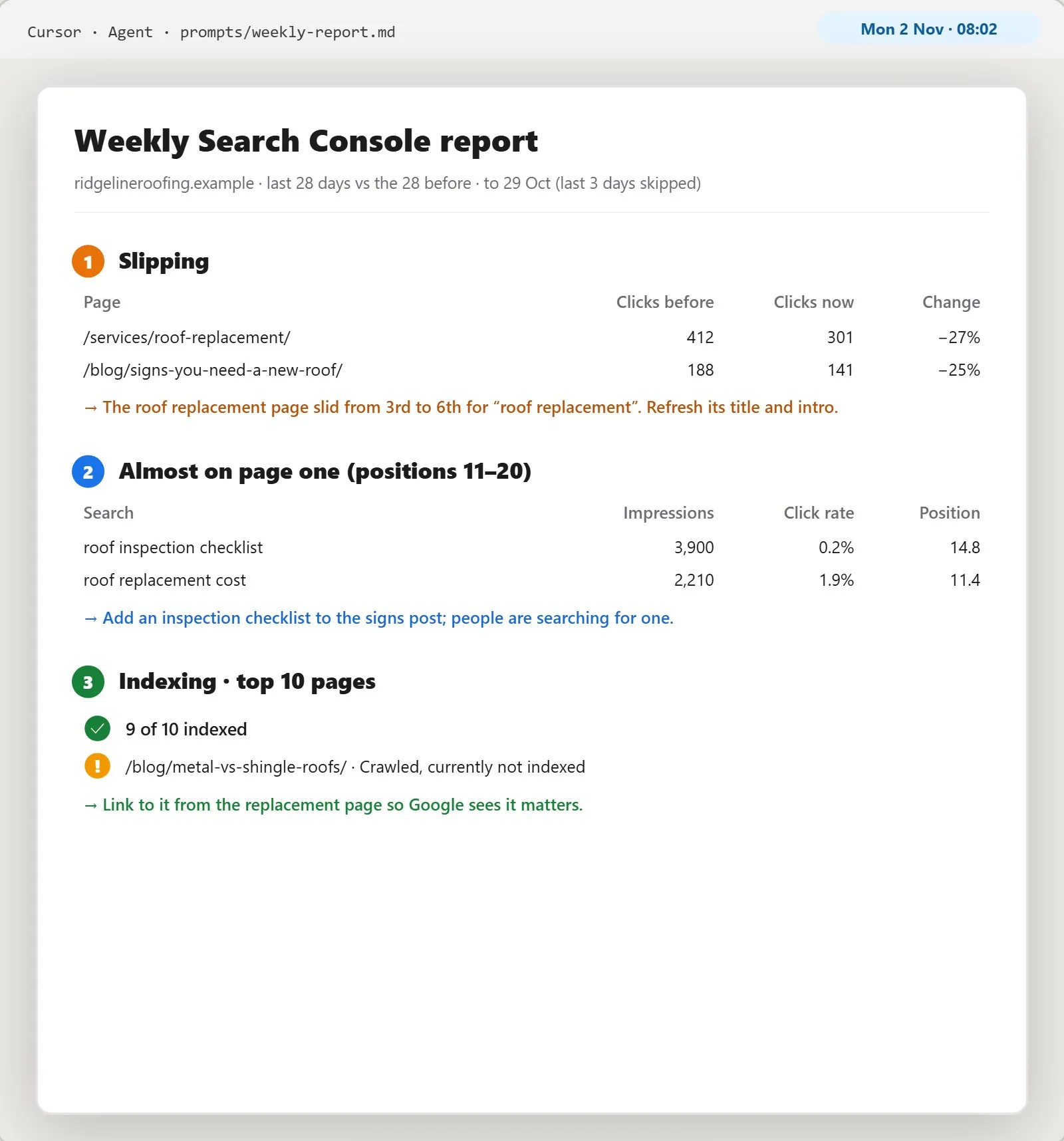
Then ask follow-ups about anything that looks odd, something like “why did this page drop, and which queries lost clicks?”. The page suggests and you decide, which is how I’d want it, because it’s reading numbers and doesn’t know your business.
Two limits are worth knowing before you trust it. There’s no site-wide “not indexed” list through the API, only URL inspection one address at a time, up to 2,000 a day per property, which is why the prompt checks your top 10 pages rather than everything. And the connector’s basic search tools return up to 500 rows per call, so treat the results as top lists rather than the complete picture.
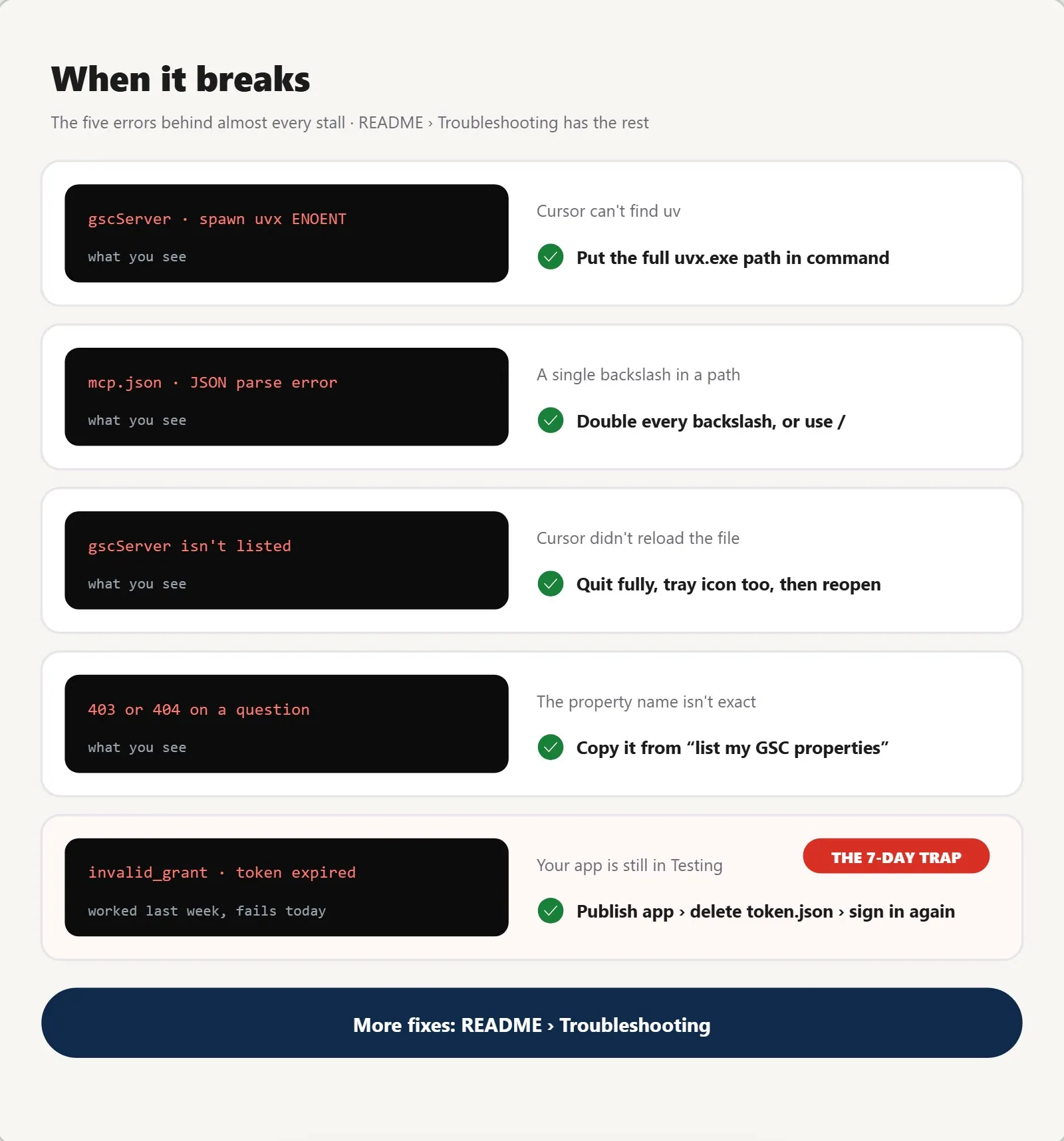
Step 8: When it breaks
| You see | Why | Fix |
|---|---|---|
| Red dot, spawn uvx ENOENT | Cursor can’t find uv | Put the full uvx.exe path in command |
| Red dot, JSON parse error | A single backslash in a path | Double every backslash |
| gscServer isn’t listed | Cursor didn’t reload the file | Fully quit Cursor, tray icon too, and reopen |
| 403 or 404 on a question | The property name isn’t exact | Copy it from “List my GSC properties” |
| invalid_grant: worked last week, fails today | The app is still in Testing | Publish it, delete the saved token.json, sign in again |
Get the starter kit
Everything above comes as one download: the connector settings for Cursor and Claude ready to paste, the weekly prompt, the first questions to test with, the Data Studio template, and the full troubleshooting table.
If you’d rather not do it yourself
Plenty of people are happy going down the DIY route, and everything you need for that is on this page. But if you need help with anything AI or automation related, get in touch. Just comment below or reach out at info@digitalonian.com.
If you want to go further with your Search Console data, I’ve also written up how I automate technical SEO audits while keeping human judgement in the loop.